





Switch a Shopify Order to a Pickup Location from Shopify Admin
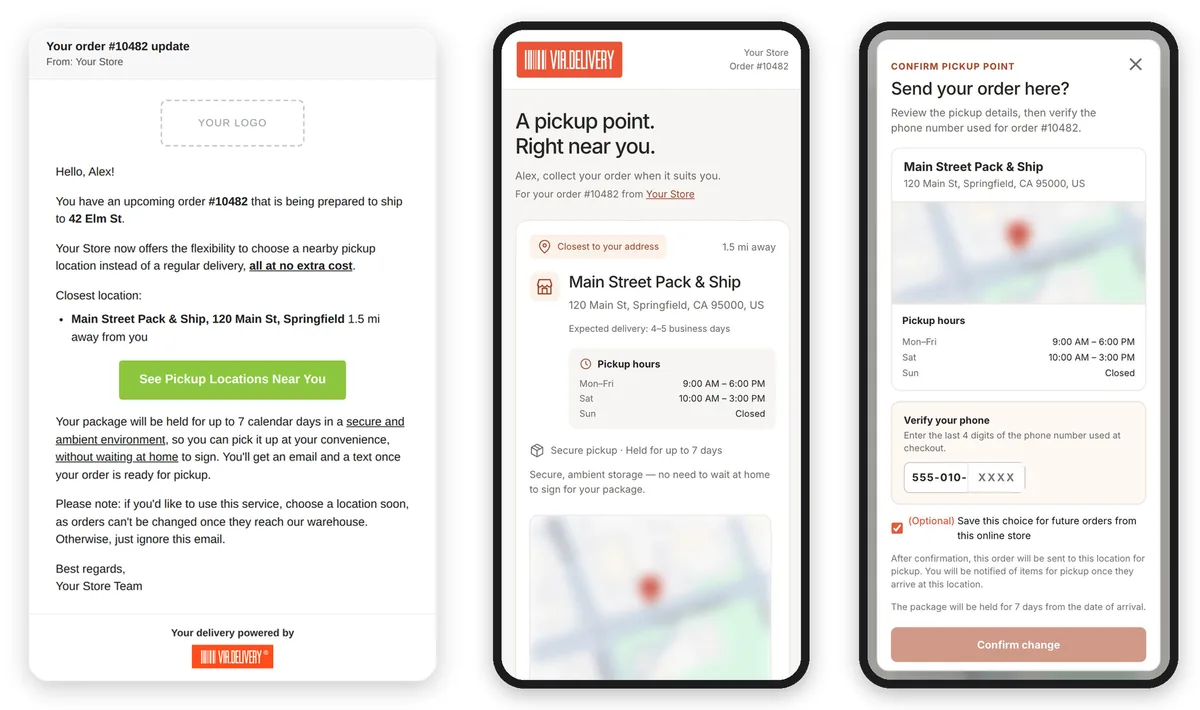
When a customer calls or emails to ask if they can pick up their order instead, your team can switch it to a nearby FedEx or UPS pickup location from the order page in Shopify admin. It takes about a minute and uses the BOPA-Redirect action that comes with the Via.Delivery app for Shopify. It's the same Pickup Redirect your customers use from their email, started by your team instead.
Before you start
- The Via.Delivery app is installed in your store, with Pickup Redirect turned on.
- The order is unfulfilled and hasn't shipped yet. Once an order is fulfilled and shipped, the delivery location can no longer be changed.
- Your staff account can open orders in Shopify admin.
1. Open the order
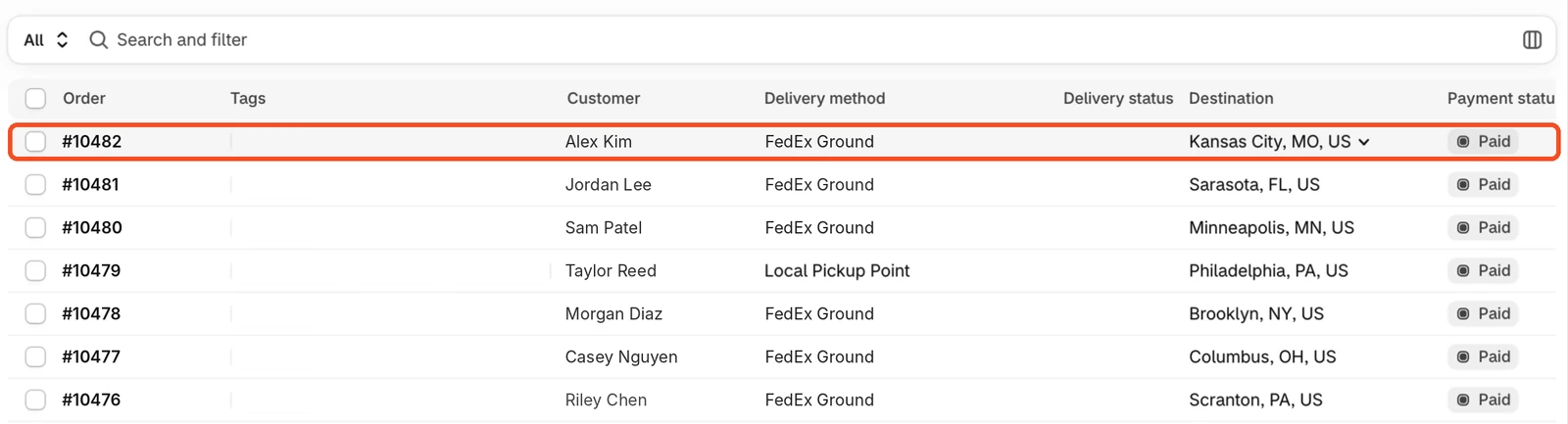
In Shopify admin, go to Orders and click the order you want to change.
2. Choose More actions, then BOPA-Redirect
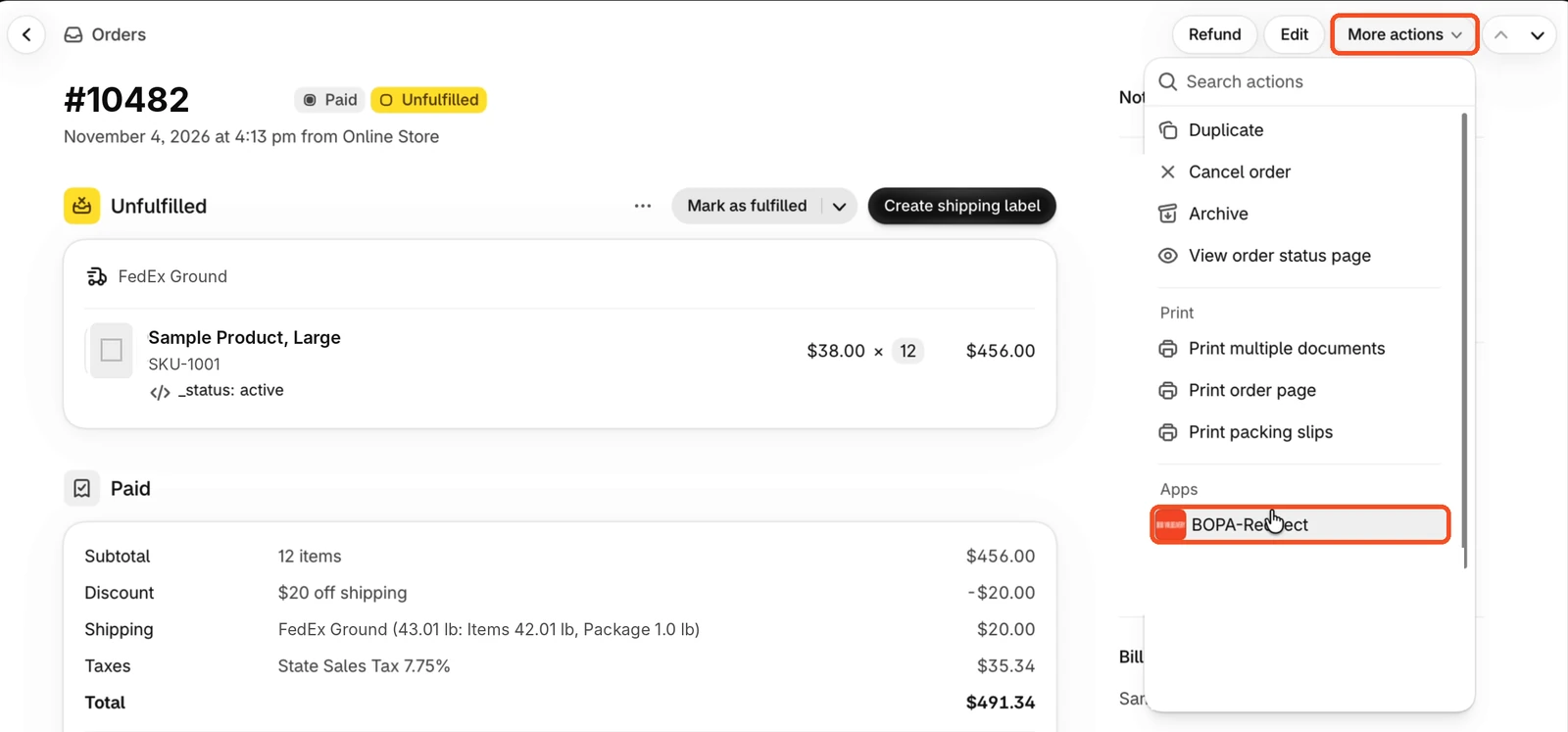
On the order page, click More actions in the top right. Under Apps, click BOPA-Redirect.
3. Click Change point
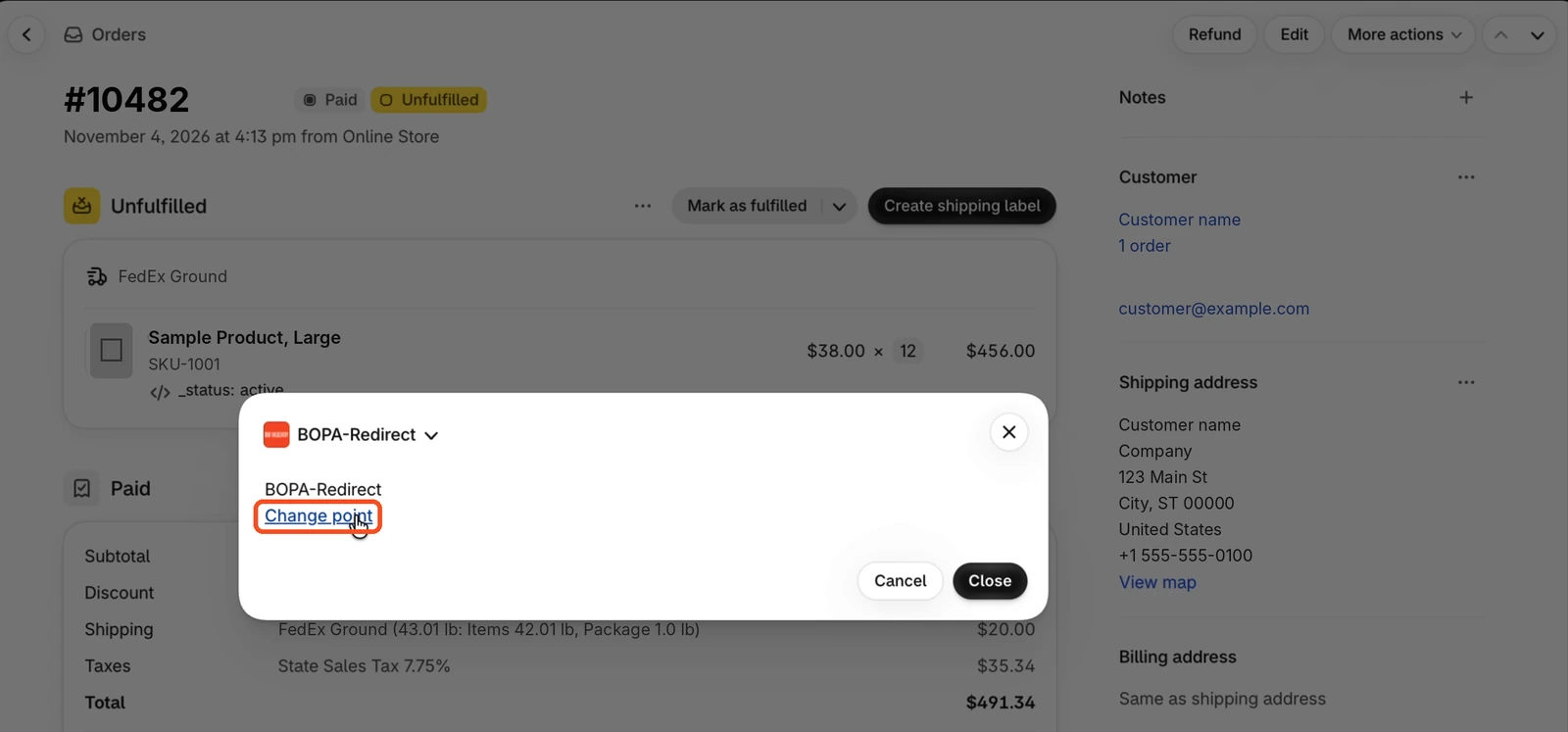
A BOPA-Redirect window opens and checks whether the order can still be redirected. This takes a second or two. When the check passes, click Change point.
If the order is already being processed to ship, the page says so and nothing is changed.
4. Choose the pickup location
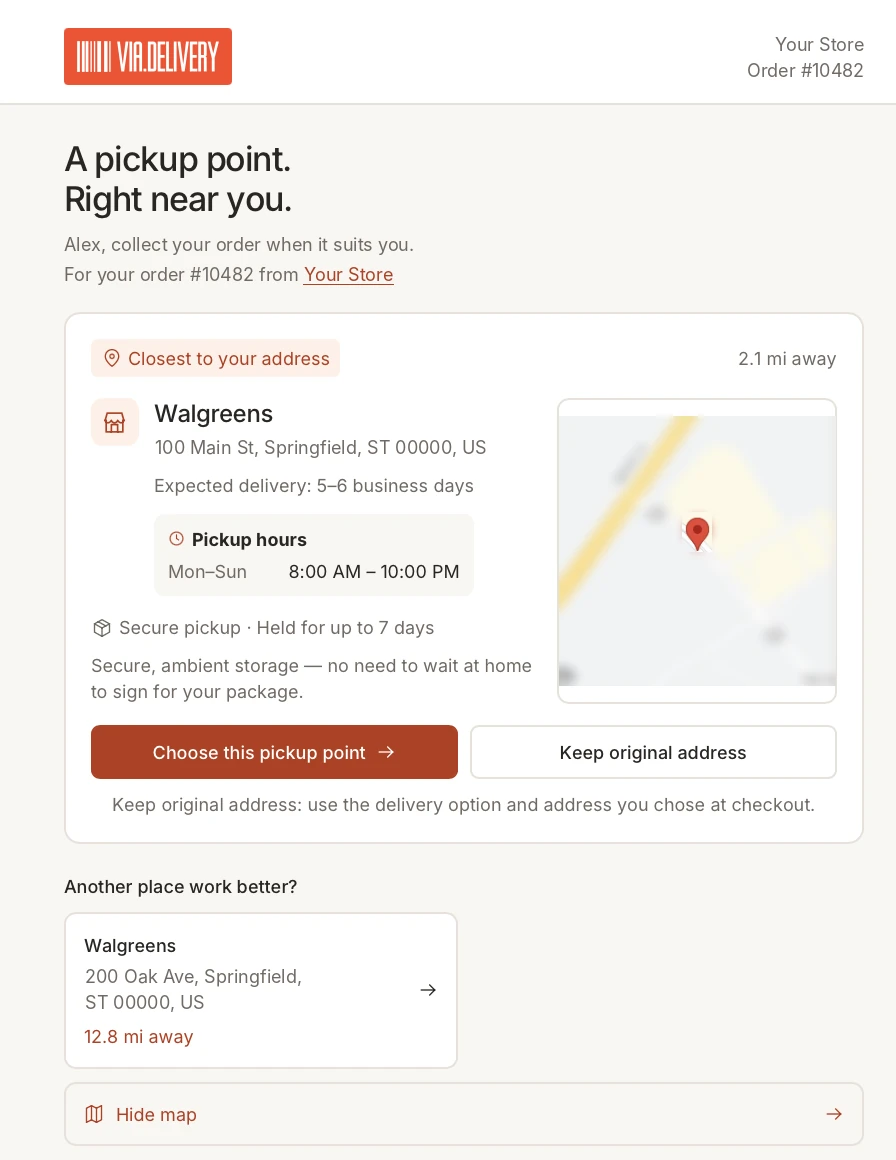
The pickup location page opens for that order, the same page the customer sees from their email. It shows the location closest to the customer's shipping address, with its distance, expected delivery time and pickup hours, plus other nearby options and a map with search. Pick the location the customer asked for, or the closest one, and click Choose this pickup point.
5. Confirm the change
Review the location and click Confirm change.
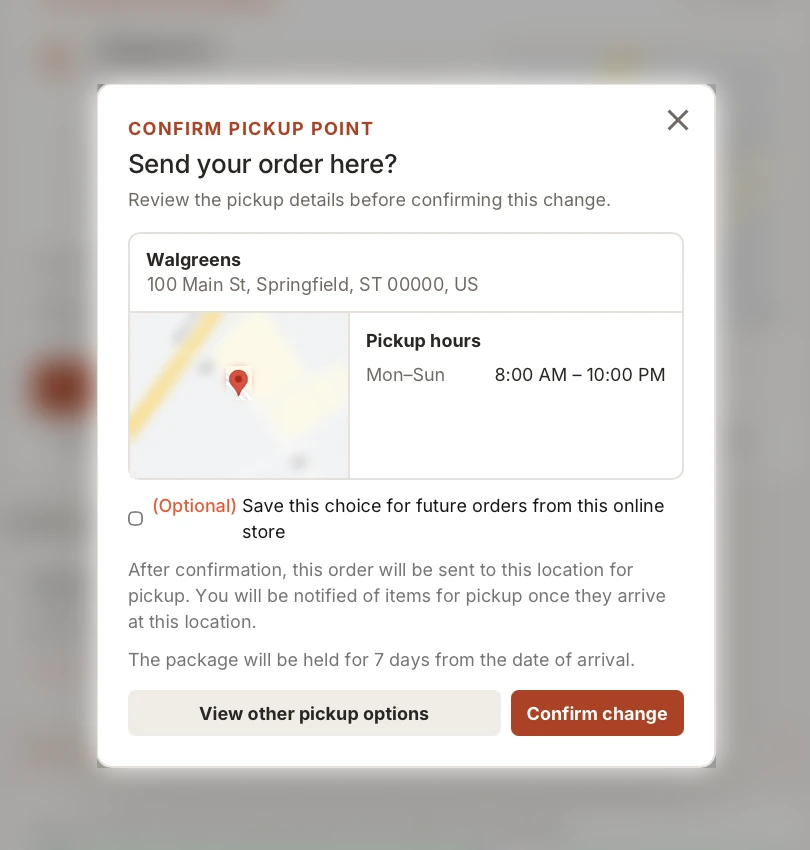
Leave "Save this choice for future orders from this online store" unchecked unless the customer asked for all their future orders to go to this location.
What happens next
- The order is switched to a FedEx Hold at Location or UPS Access Point delivery to the chosen location, and your fulfillment system is updated automatically.
- The customer is notified when the package arrives at the location.
- The package is held for 7 days from the date it arrives.
Need help?
Book a call and we'll walk your team through it.