





Set Up Via.Delivery Checkout Blocks on Shopify
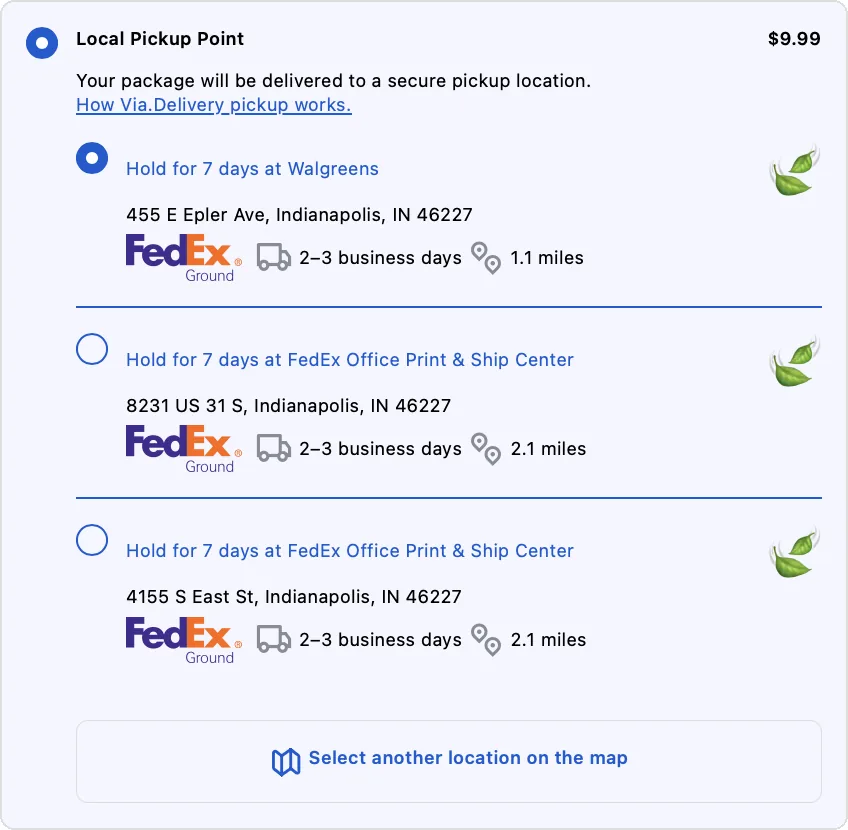
This guide shows how to set up the Via.Delivery checkout blocks in your Shopify checkout. The blocks are built on Shopify's checkout UI extensions. Shoppers see one Local Pickup Point shipping option with the nearest FedEx and UPS pickup locations, distance and delivery time, and a map to choose another location. It works in your regular checkout and in Shop Pay. Setup has two parts: two settings in the Via.Delivery app, then two blocks in Shopify's checkout editor. For what the app does, see Via.Delivery for Shopify Plus.
Before you begin
- A Shopify Plus store. Checkout UI extensions for the information, shipping and payment steps are available only on Shopify Plus (Shopify developer docs). On Shopify Grow and Advanced, pickup locations show as regular shipping options instead (see Via.Delivery for Shopify).
- Permission to edit the checkout in Shopify admin (store owner, or a staff account with access to Settings and Apps).
- A Via.Delivery account. Our team sets up your agreement, the pickup rate shoppers see and how you ship. If you don't have an account yet, book a call or email info@via.delivery.
Quick checklist
- Shopify App Store: install Buy Online Pickup Anywhere by Via.Delivery and connect your Via.Delivery account.
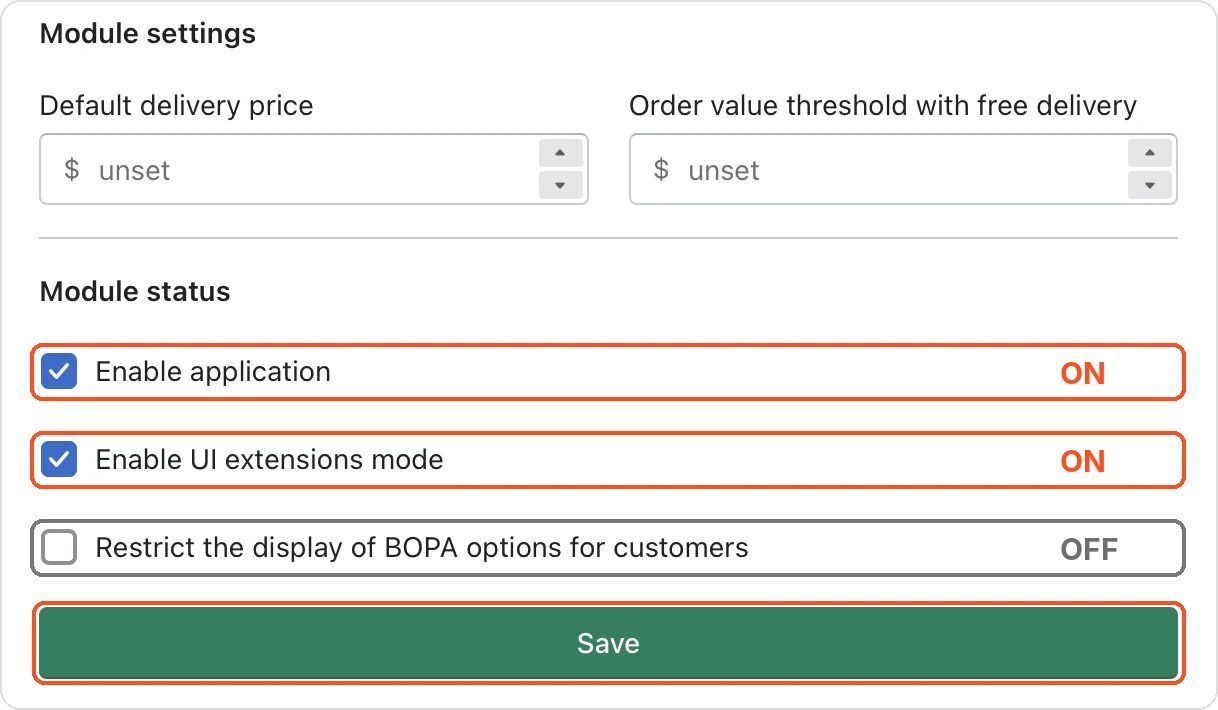
- Via.Delivery app → Module status: Enable application on, Enable UI extensions mode on, Restrict the display of BOPA options for customers off. Click Save.
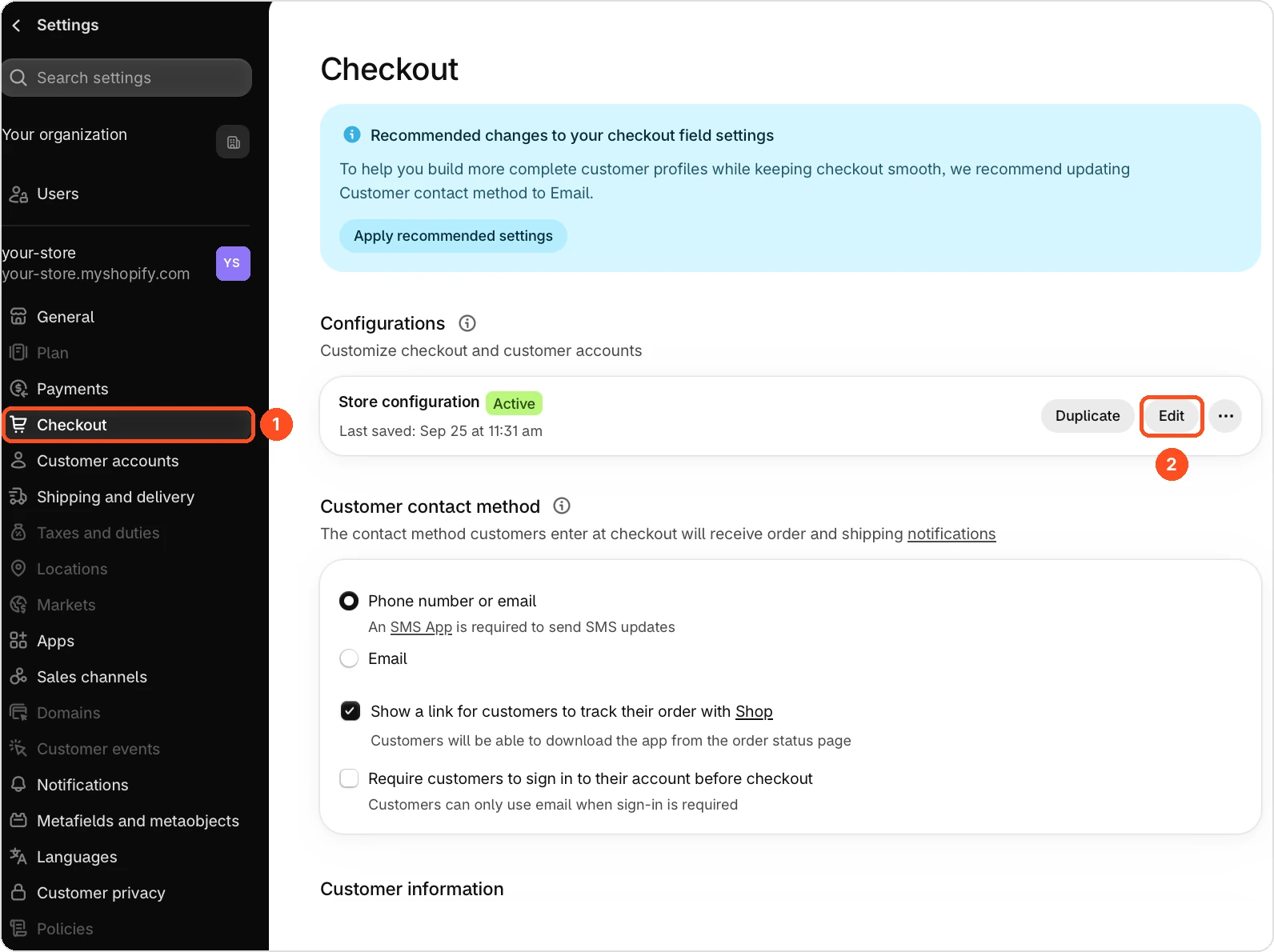
- Shopify admin → Settings → Checkout: click Edit on your checkout configuration.
- Checkout editor → Main → Add block: add Via.Delivery: Unified and Via.Delivery: Phone Confirmation. Both should sit under Shipping method → Shipping option list.
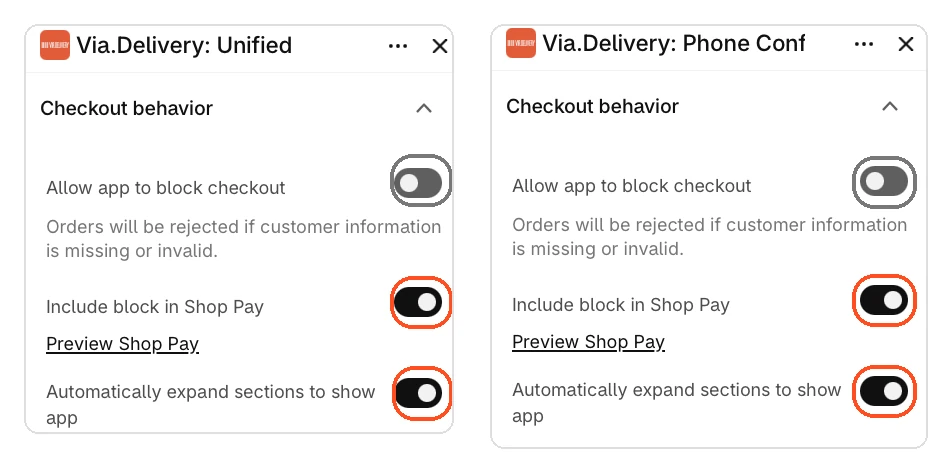
- Each Via.Delivery block → Checkout behavior: Allow app to block checkout off, Include block in Shop Pay on, Automatically expand sections to show app on.
- Save the checkout, then place a test order in the regular checkout and in Shop Pay.
1. Install the app and connect with Via.Delivery
Open Buy Online Pickup Anywhere by Via.Delivery in the Shopify App Store and click Install. Then contact us to set up your agreement and your shipping preferences: the address you ship from, the pickup rate shoppers pay, and whether you ship with your own FedEx or UPS account or with Via.Delivery's rates.
If the app is already installed, open it from Shopify admin: search for Buy Online Pickup Anywhere under Apps and click it. The app's settings page opens inside Shopify admin.
If the app is already installed, open it from Shopify admin: search for Buy Online Pickup Anywhere under Apps and click it. The app's settings page opens inside Shopify admin.
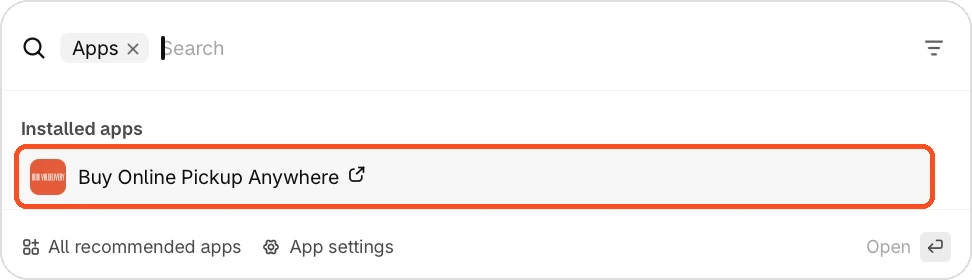
At the top of the settings page, enter the account details our team gave you. The Recharge and Stay Ai API keys are optional: fill them in only if you use those subscription apps.
2. Turn on UI extensions mode in the app
Scroll to the bottom of the app's settings page, to Module status, and set the three checkboxes:
| Setting | Set to | What it does |
|---|---|---|
| Enable application | On | Turns the Via.Delivery app on for your store. |
| Enable UI extensions mode | On | Makes the app work with the checkout blocks you add in step 4. |
| Restrict the display of BOPA options for customers | Off | A test mode: when on, the pickup option is shown only to a limited group of customers. Turn it off when you go live. |
Click Save. The app is now ready to work with the checkout blocks.
3. Open the checkout editor
In Shopify admin, go to Settings → Checkout. Under Configurations, find your active checkout configuration and click Edit. Shopify's checkout editor opens, with the list of checkout sections and blocks on the left.
4. Add the two Via.Delivery blocks
On the left side of the checkout editor, find the Main section and click Add block at the bottom of it. Under Buy Online Pickup Anywhere, add these two blocks:
Make sure both blocks sit under Delivery → Shipping method → Shipping option list. If a block lands somewhere else, drag it there in the left panel.
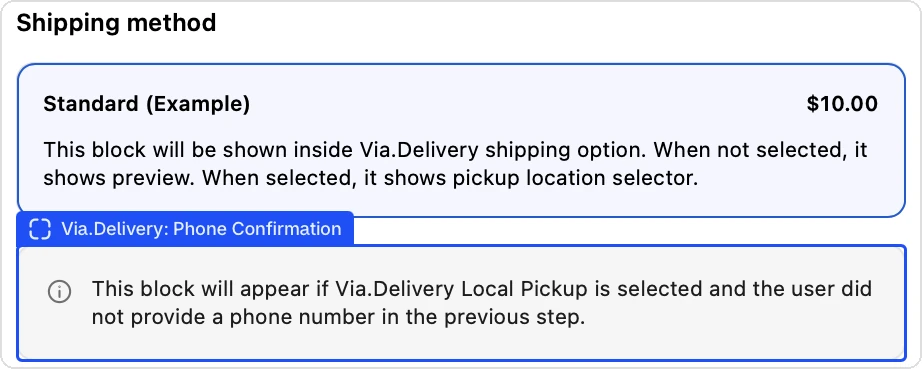
- Via.Delivery: Unified: the pickup option itself. When the shopper hasn't selected it, it shows a preview of the nearest pickup location. When they select it, it shows the pickup location list and the map.
- Via.Delivery: Phone Confirmation: asks for a phone number when the shopper chooses a pickup location but didn't give a phone number in the previous step.
Make sure both blocks sit under Delivery → Shipping method → Shipping option list. If a block lands somewhere else, drag it there in the left panel.
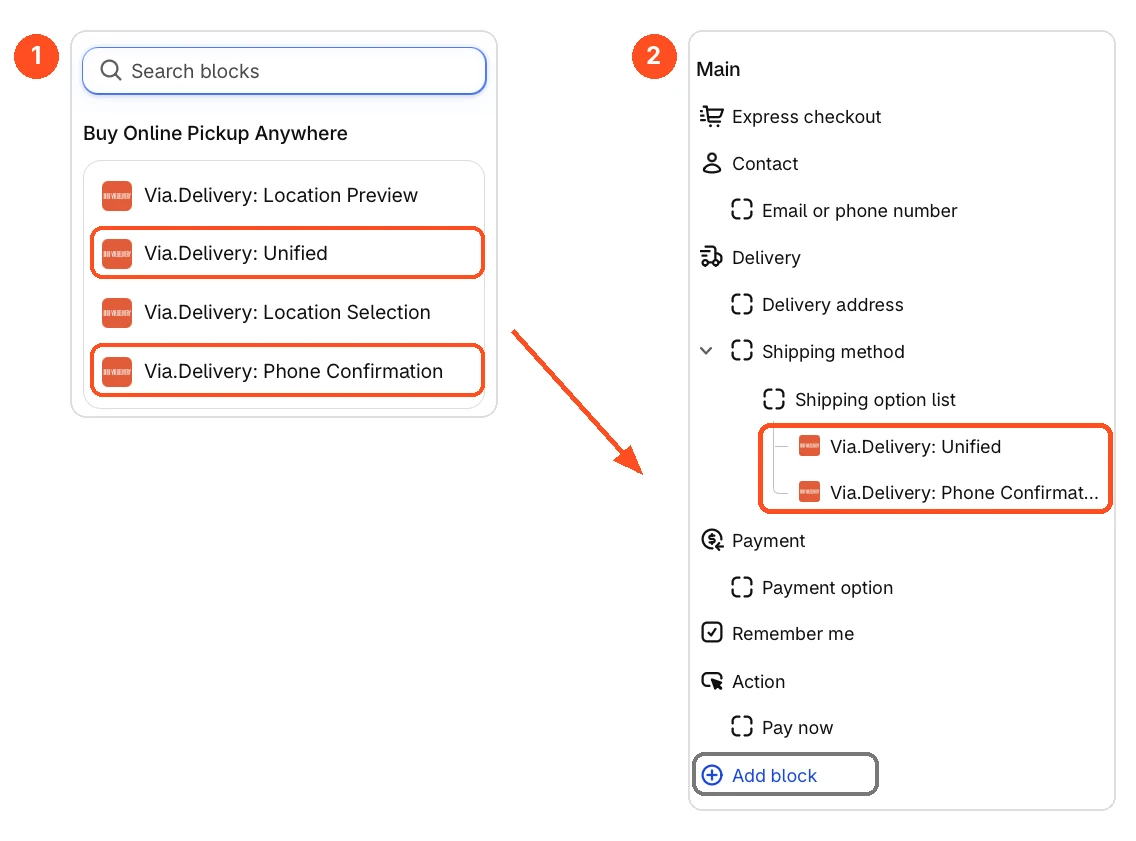
In the editor's preview, the two blocks show as placeholders in the shipping step. That's expected: shoppers see real pickup locations once they enter a delivery address.
5. Set up the Checkout behavior of each block
Click Via.Delivery: Unified in the left panel. Its settings open on the right side of the editor. Open Checkout behavior and set the three toggles:
| Toggle | Set to | Why |
|---|---|---|
| Allow app to block checkout | Off | When on, Shopify rejects orders if the block finds customer information missing or invalid. Leave it off so the block never stops an order. |
| Include block in Shop Pay | On | Shows the pickup option in Shop Pay checkout, not only in your regular checkout. |
| Automatically expand sections to show app | On | Important for Shop Pay. Shop Pay collapses the list of shipping options by default. Without this toggle, shoppers who check out with Shop Pay don't see the pickup option at all. |
Then click Via.Delivery: Phone Confirmation and set its three toggles the same way: Allow app to block checkout off, Include block in Shop Pay on, Automatically expand sections to show app on.
Click Save in the top right corner of the checkout editor. The setup is done.
6. Check the result
Add a product to your cart and go to checkout with a U.S. delivery address. Check both ways of checking out.
Shop Pay. The shipping list opens on its own and shows Local Pickup Point next to your other rates, with the nearest pickup location, carrier, delivery time and distance. "Map it or change" lets the shopper choose another location.
Shop Pay. The shipping list opens on its own and shows Local Pickup Point next to your other rates, with the nearest pickup location, carrier, delivery time and distance. "Map it or change" lets the shopper choose another location.
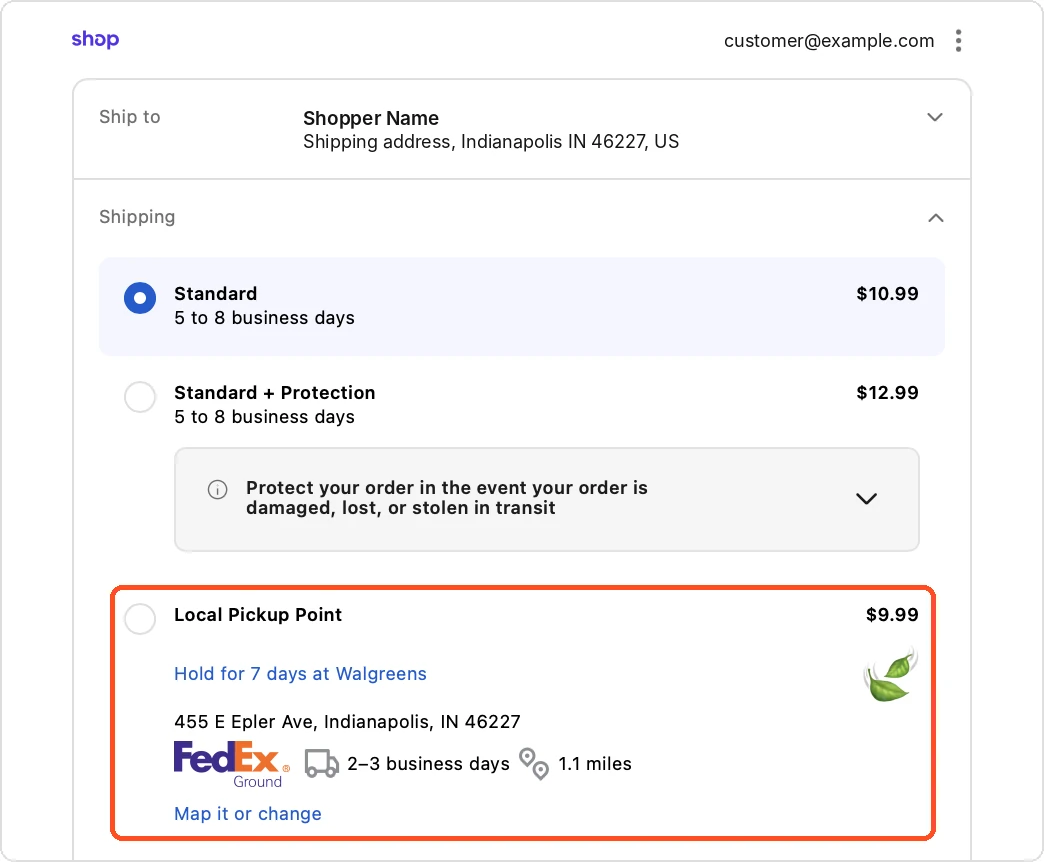
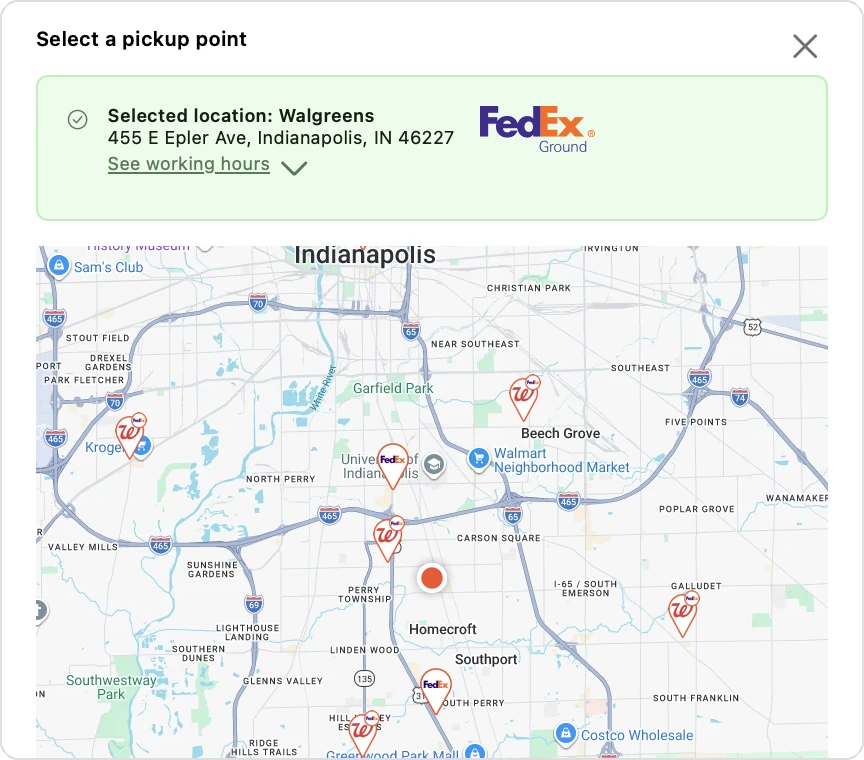
Regular checkout. Local Pickup Point is one option in the shipping list. When the shopper selects it, it lists the three nearest pickup locations under that single option (the image at the top of this page). Select another location on the map opens a map of every pickup location nearby, with working hours for each one.
If the pickup option doesn't show, check the FAQ below or email support@via.delivery with your store URL.
FAQ
The pickup option doesn't show in Shop Pay. What should I check?
Open the checkout editor and check that Include block in Shop Pay and Automatically expand sections to show app are on for both Via.Delivery blocks, then save the checkout. Without the second toggle, Shop Pay keeps the shipping options collapsed and shoppers don't see pickup.
Only some customers see the pickup option. Why?
Restrict the display of BOPA options for customers is probably on in the Via.Delivery app. It's a test mode that shows pickup to a limited group of customers. Turn it off and click Save.
Which Via.Delivery blocks do I need?
Two: Via.Delivery: Unified and Via.Delivery: Phone Confirmation. Unified shows the pickup preview, the location list and the map, so you don't need the separate Location Preview and Location Selection blocks.
Why ask for a phone number?
The Phone Confirmation block appears only when a shopper picks a pickup location and didn't give a phone number earlier in checkout. With a phone number, the shopper can get text messages when the package is ready and reminders until they pick it up.
Does this work on Shopify Grow or Advanced?
Not the checkout blocks: Shopify allows app blocks in the shipping step only on Shopify Plus. On Grow and Advanced, the same app adds each nearby pickup location as its own shipping option. See Via.Delivery for Shopify.
Do I need to edit code or checkout.liquid?
No. Everything is set up in the Via.Delivery app and in Shopify's checkout editor. Shopify no longer supports checkout.liquid on the information, shipping and payment pages of checkout.